
Bee User Guide
1. Overview
Bee is a component deployed on cloud phones that provides automation execution and status monitoring capabilities. After installation, users can manage cloud phone status more efficiently and execute AutoJS scripts from the script library.
Bee provides the following capabilities:
1.1 AutoJS Script Execution
After installing Bee, cloud phones can execute AutoJS automation scripts from the script library for automated actions such as clicking and workflow execution.
1.2 Device Status Monitoring
After installing Bee, you can monitor the cloud phone status, including:
- IP status
- Heartbeat status
2. Prerequisites
Before using Bee, ensure:
- Cloud phones have been created
- You have sufficient permissions
- Cloud phone network is normal
3. Bee Installation
3.1 Default Status
In the cloud phone list, the default Bee status is:
Not Installed

(Image placeholder)
3.2 Installation Steps
- Go to Cloud Phone List
- Select the target devices
- Click Batch Operation
- Select Bee Settings
- Click Install Bee
- Click Confirm in the popup
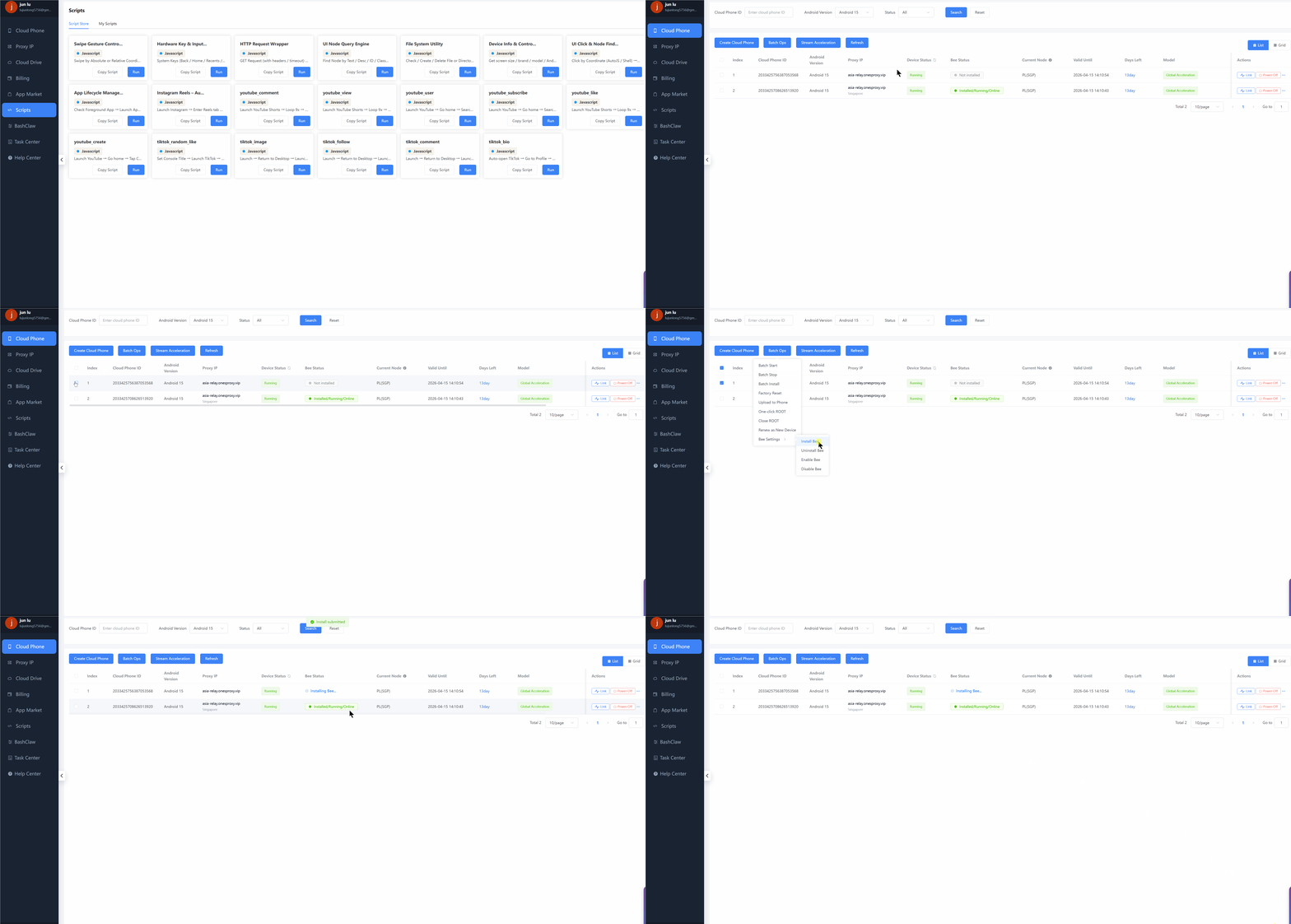
3.3 Installation Result
After installation, the Bee status will become:
- Installed / Running / Online
4. Bee Status Description
| Status | Description |
|---|---|
| Not Installed | Bee is not installed |
| Installed / Not Running / Offline | Installed but not running |
| Installed / Running / Offline | Network error |
| Installed / Running / Online | Bee is connected and working normally |
✅ Recommended status: Installed / Running / Online
5. Script Library Usage
5.1 Description
The script library allows execution of AutoJS automation scripts.
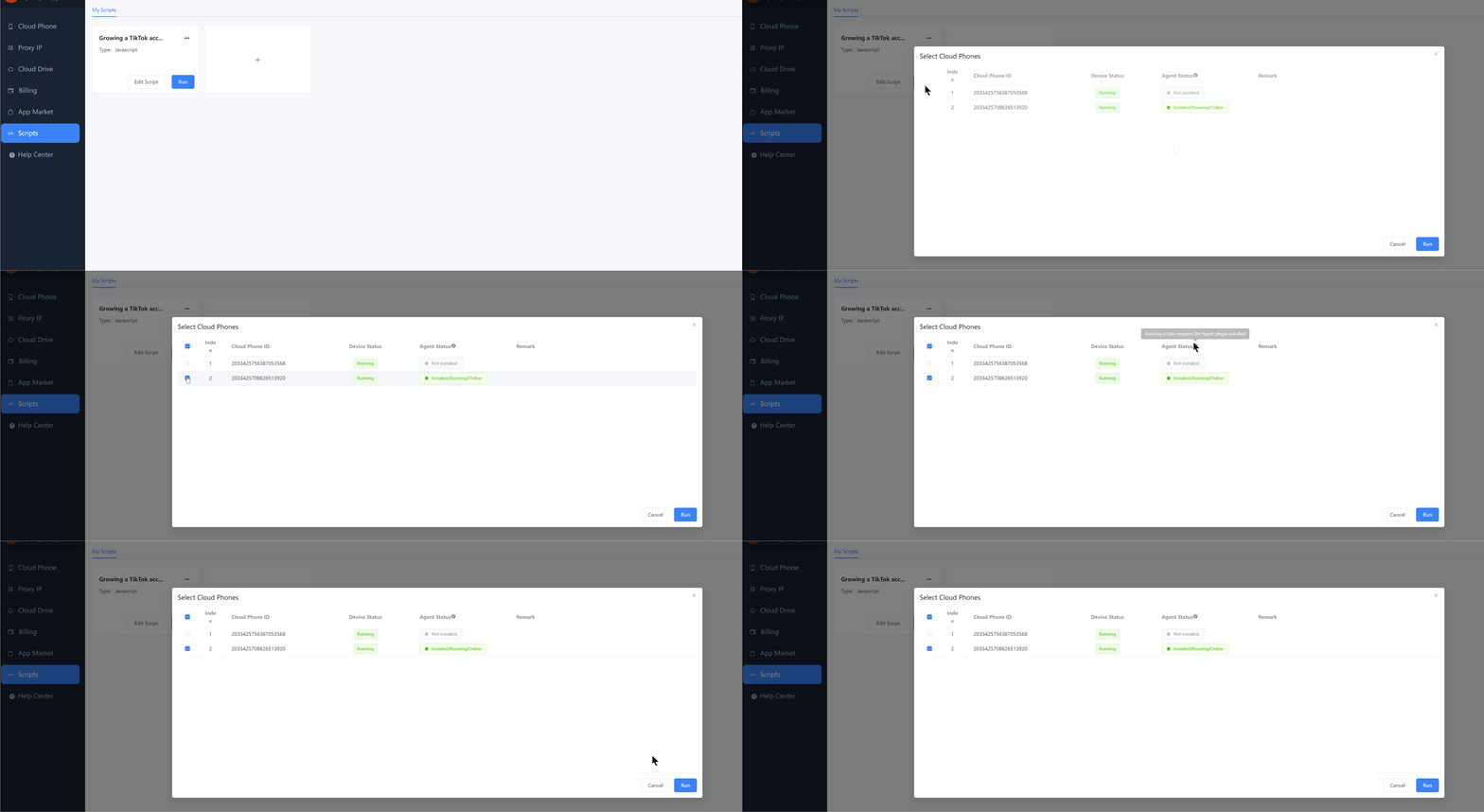
5.2 Requirements
Before executing scripts, ensure:
- Bee is installed
- Bee status is normal
- Device is online
5.3 Limitations
⚠️ Scripts cannot be executed in the following cases:
- Bee is not installed
- Device is offline
6. Monitoring
6.1 IP Status
Used to determine whether the cloud phone network is functioning properly.
6.2 Heartbeat Status
Used to determine whether the Bee is properly connected to the platform:
- Normal: device is stable
- Abnormal: device may be offline or network is unstable
7. Recommended Workflow
- Install Bee
- Ensure status is Running / Online
- Check IP and heartbeat status
- Execute scripts from the script library
8. FAQ
8.1 Why can't scripts be executed?
Possible reasons:
- Bee is not installed
- Bee is offline
- Network issue
8.2 Why is Bee not usable immediately after installation?
Bee may take some time to start.
8.3 How to confirm installation success?
The status changes from "Not Installed" to:
- Installed / Running / Online
8.4 What to do if heartbeat is abnormal?
Recommended steps:
- Check if the device is online
- Check network connectivity
- Verify Bee is running
9. Troubleshooting
9.1 Status remains "Not Installed"
- Retry installation
- Ensure "Confirm" was clicked
9.2 Installed but not usable
- Check if device is online
- Check network status
9.3 Bee is offline
- Check network
- Restart or reinstall Bee
10. Notes
- Scripts cannot run without Bee
- Offline devices cannot execute scripts
- Always check status before execution
11. Quick Access
Install Bee
Cloud Phone List → Batch Operation → Bee Settings → Install AgBee
Check Status
Cloud Phone List → Bee Status
Execute Script
Script Library → Select Script → Run → Select Cloud Phone